What you’ll achieve
A repeating weekly schedule, with separate exceptions for dates when you are busy or taking time off.
Example: Anna takes appointments Monday to Friday, 10:00–18:00, with lunch from 13:00 to 14:00. She needs an hour off on October 26, 15:00–16:00, and a vacation on November 2–4. The Haircut service is already set up.
Choose your schedule and how it repeats
In the web dashboard, open Schedule. If you have several schedules, select the relevant one, then select Working hours and services under When I work.
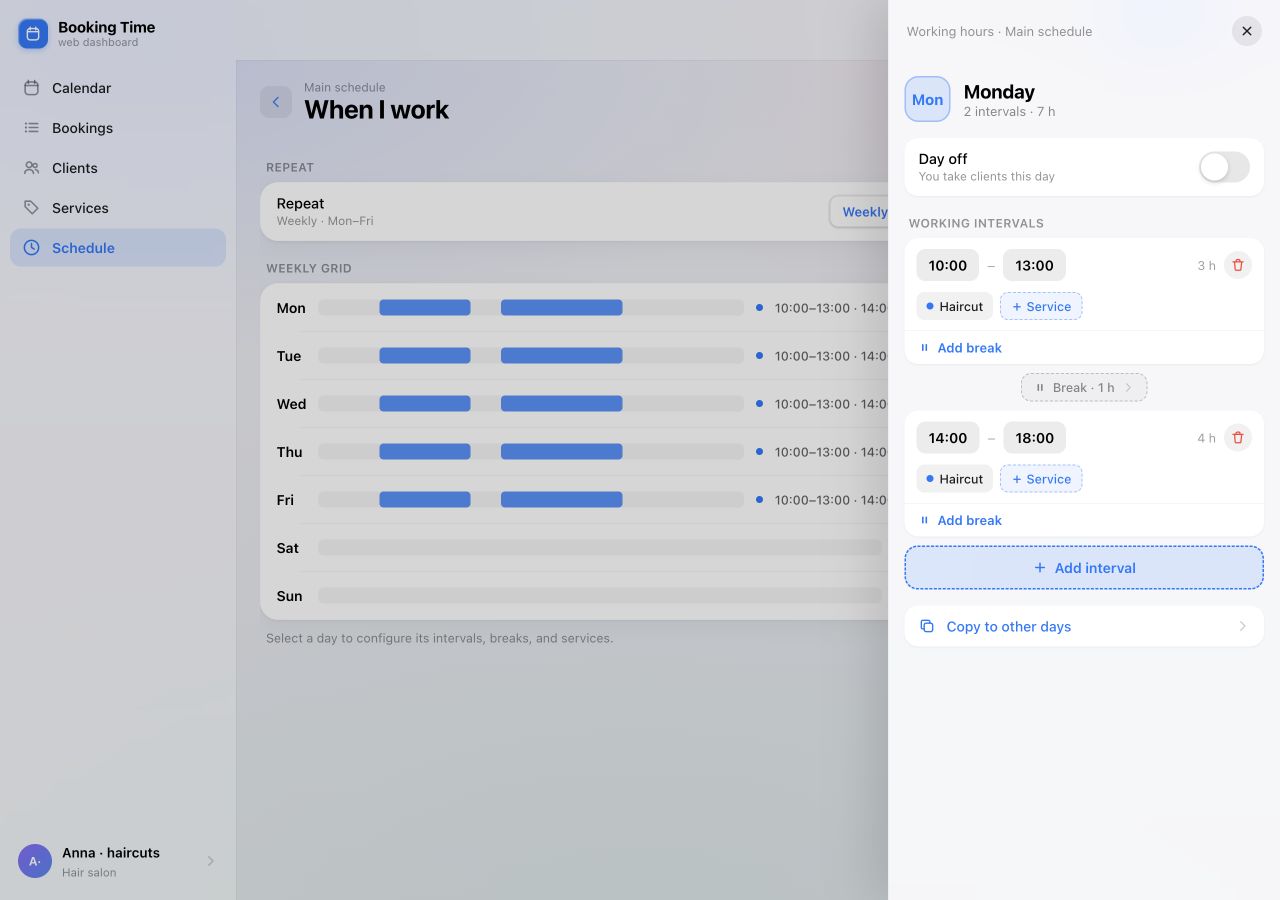
Choose Weekly for a schedule that repeats every week. The grid shows working intervals and days off. In this example, Monday to Friday are working days; Saturday and Sunday are days off.
To make a weekday regularly unavailable, open it and enable Day off. This is a repeating rule that applies to every occurrence of that weekday. For one specific Monday or a vacation, use the closed-time options below.
Set intervals, a break and services
Open Monday. Set the start and end of a working interval. For lunch, select Add break and adjust the two resulting intervals to 10:00–13:00 and 14:00–18:00. The hour between them will be unavailable for online booking.
You can also use Add interval if your day has several separate working blocks. Select the break row to adjust its length.
- Check the services in each working interval. Use + Service to select Haircut for both the morning and afternoon.
- If Tuesday to Friday follow the same pattern, select Copy to other days, choose those days and apply the change. Intervals and their assigned services are copied together, so check that they suit every selected day.
- Close the day panel to save, then review the weekly grid. If saving fails, retry the change.
Close a few hours on a specific date
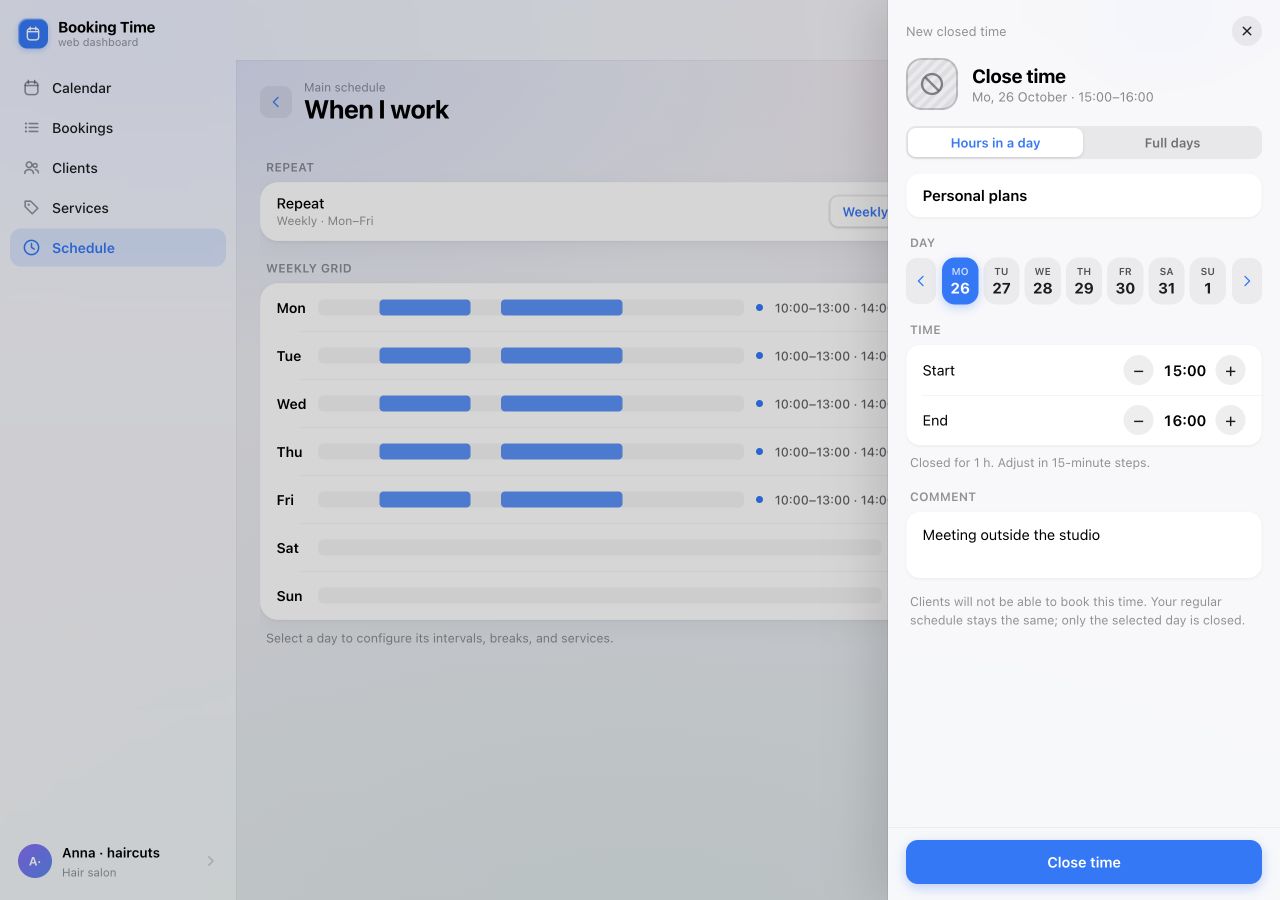
For a one-off meeting or personal plans, select Block time in the dashboard’s top bar. Keep Hours in a day selected.
- Add a clear title, such as Personal plans.
- Choose the date. The arrows switch weeks. Our example uses October 26.
- Set Start to 15:00 and End to 16:00. Times use 15-minute steps, and the end must be later than the start.
- Add a comment if useful; only you can see it. Select Close time at the bottom of the form.
You can also shorten a particular working day this way: close the remaining evening if you need to leave early. Your regular Monday hours stay the same.
Add a day off or a vacation
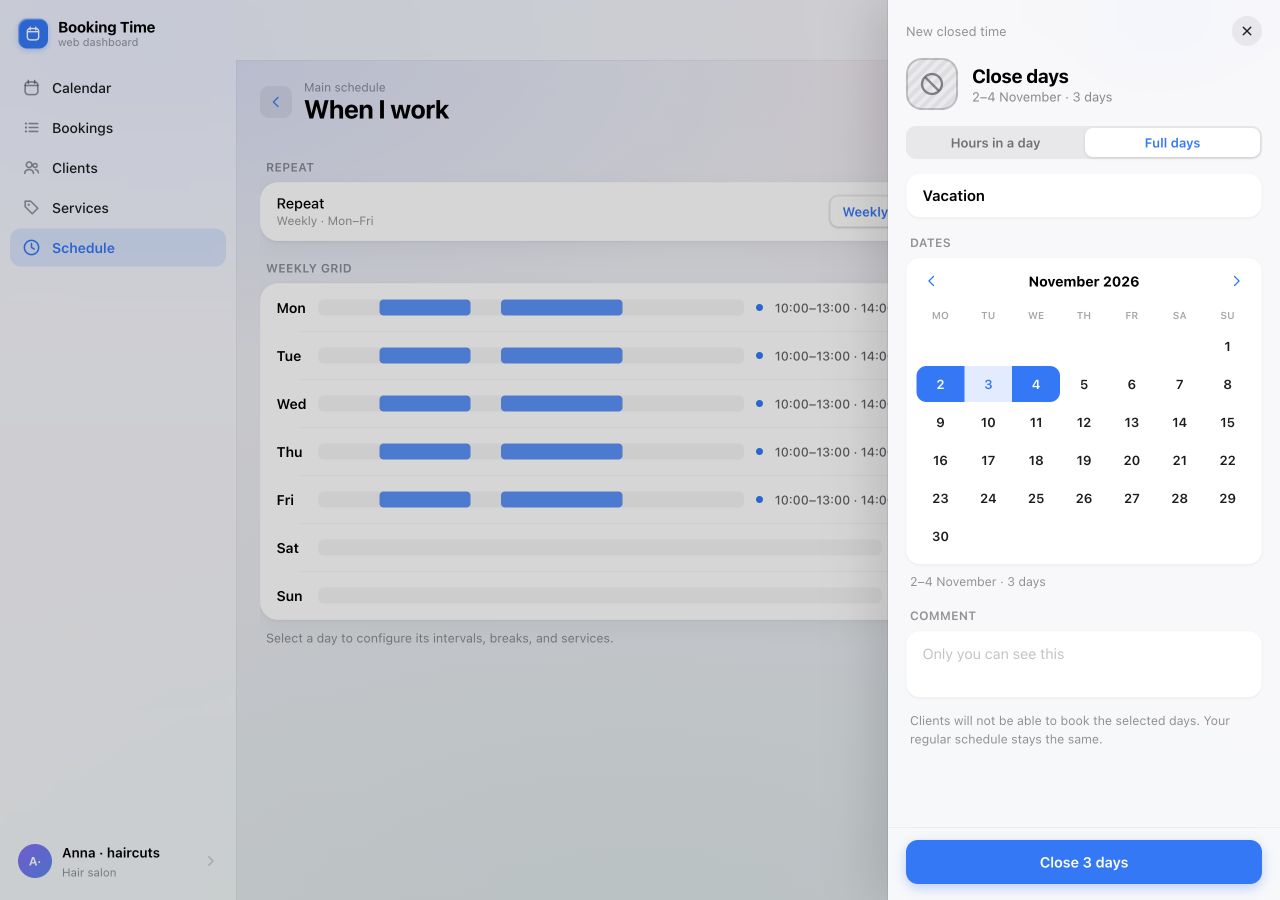
Open Block time again and switch to Full days. Use this for a one-off day off, holidays or a vacation.
- Enter a title, such as Vacation.
- Select the first and last dates. For our example, move to November and select November 2 and 4. Both endpoints are included, so November 2, 3 and 4 will be closed.
- Check the summary: 2–4 November · 3 days. For a single day off, select just one date.
- Review any warnings about existing bookings, then select Close 3 days. For a different range, the button shows the number of selected days.
A vacation also closes all active schedules. Once the period ends, your regular working pattern applies again; you do not need to restore the hours manually.
Review exceptions and client availability
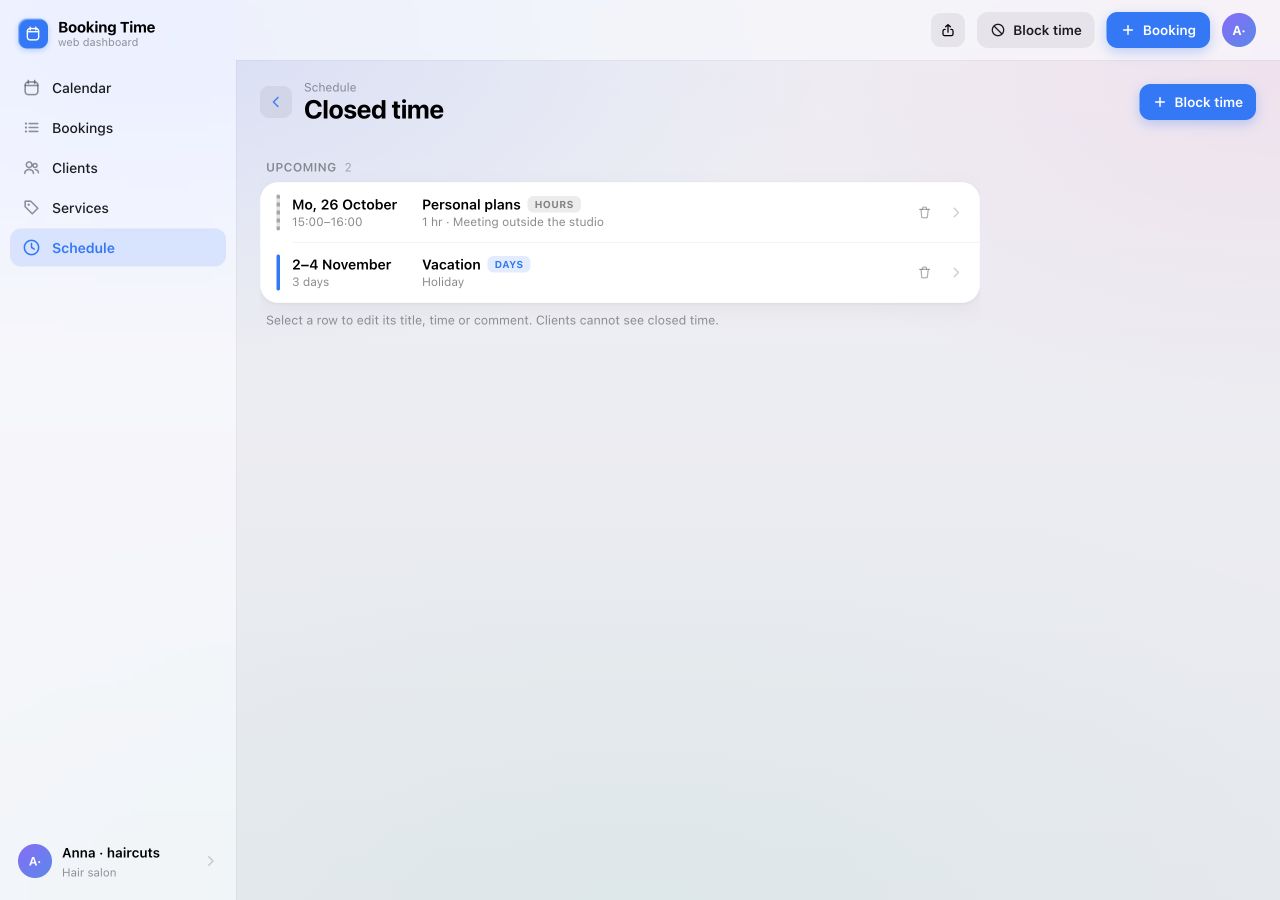
Return to Schedule and select Exceptions. On Closed time, check dates, time ranges and titles. Our example should show Personal plans on October 26, 15:00–16:00, and Vacation on November 2–4.
Select a row to edit its title, time or comment. If your plans change, open the exception, select Delete and read the confirmation. Removing a closure restores regular hours; it does not turn an existing day off into a working day or free time already taken by a booking.
Check the schedule as a client
Open your online booking link and select a service. Check that the lunch break and closed hours are unavailable, clients cannot book during the vacation, and suitable working days are available again afterwards. The full client journey is covered in a separate guide.
Available times also depend on service duration and existing bookings. For example, a one-hour service cannot start at 12:30 if the working interval ends at 13:00.
If availability does not look right
- A working day has no bookable times. Check assigned services in each interval, service duration, existing bookings and exceptions for that date.
- Every Monday changed. You edited the regular pattern. Restore the usual hours and create closed time on the specific date for a one-off change.
- Another schedule also became unavailable. New closed hours and days apply to all active schedules. This differs from editing one schedule’s weekly grid.
- There are still bookings during the vacation. Closing dates does not cancel appointments. Reschedule or cancel them separately and check the calendar afterwards.
- The form rejects a time. Use 15-minute steps and an end later than the start. For several complete days, switch to Full days.
- The dates already have an exception. Open the existing row under Closed time and edit it. Do not create a duplicate over the warning.
If a change will not save, contact support with the schedule, date and action that produced the error.
Day-to-day management
Time for clients.
Time for yourself.
Set your regular week, add exceptions and check upcoming dates through your online booking link.
Open web dashboard